Guide · Federated models
Duplicate pipes in a federated Navisworks model: how they inflate an MTO
Short answer: a federation can hold the same pipe more than once — a model appended twice, an old revision left in, or one run modelled by two disciplines. The copies sit exactly on top of each other, so nothing looks wrong in the 3D view, but every take-off that walks the object tree counts them all. In one federation we measured, 82,200 objects were exact duplicates, worth 7,104 m of pipe that does not exist.
Why the number matters
The federation in question was 210 MB with 1.3 million objects — an ordinary multi-discipline NWD of the kind that lands on an estimator’s desk a few days before a bid is due. The model was not broken. Nobody had made a mistake you could point at. It had simply accumulated copies over the life of the project, and no one had a tool pointed at them.
Seven kilometres of phantom pipe is not a rounding error. It is material, supports, insulation and labour hours priced for work that will never be installed — or, if the bid wins on the strength of it, a margin that quietly disappears on site.
To be fair to everyone involved: this is one measured case, not a law. A federation that has been assembled carefully may contain no duplicates at all. The point is that you cannot tell which kind you have by looking at it.
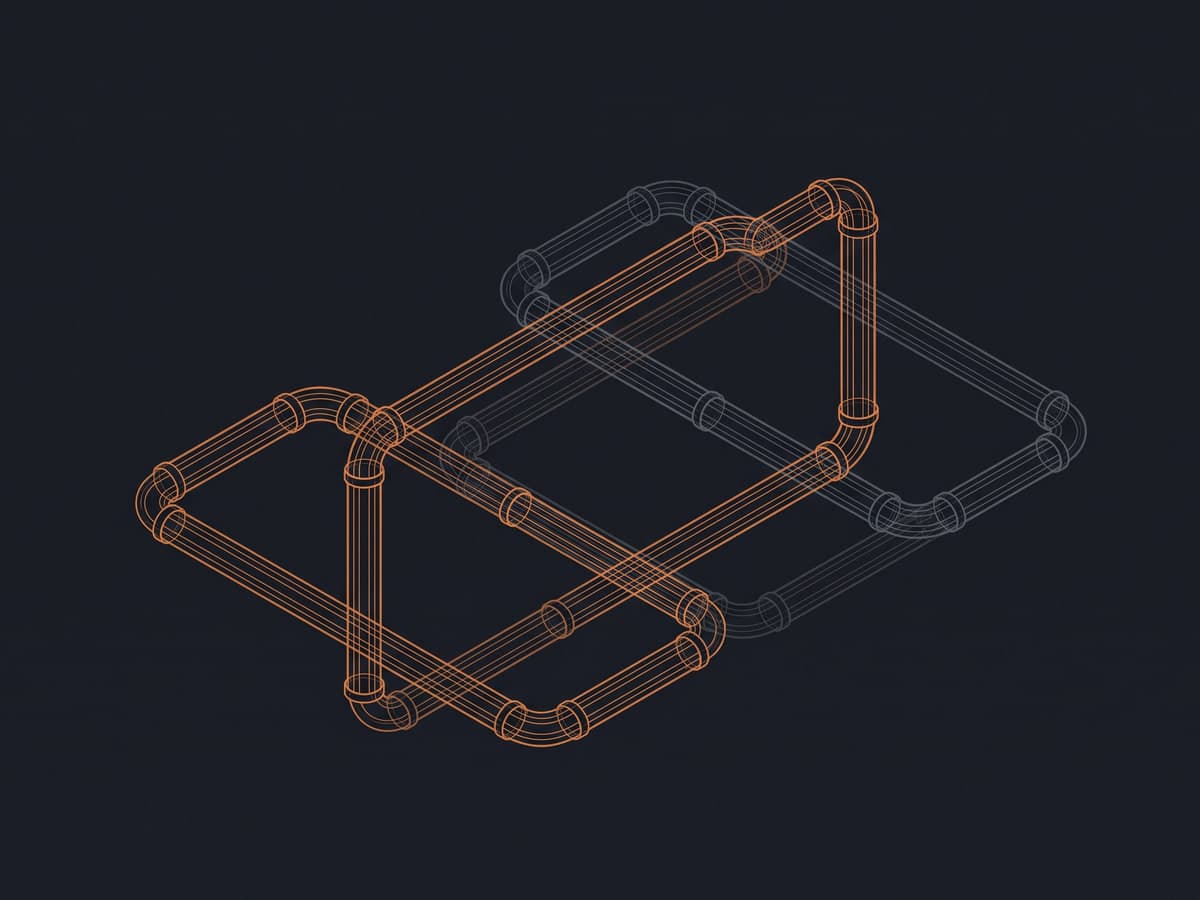
How a federation ends up with two of everything
1. The same source model appended twice
A federation is built by appending NWC, NWD or NWF files into one container. It is easy for the same content to go in twice: once directly and once inside a nested federation someone else assembled, or once under an old file name and once under a new one. Autodesk’s own support article describes appended NWCs in an NWF being duplicated when the file is opened or refreshed. Nobody has to do anything wrong for it to happen.
2. Overlapping discipline models
Responsibility for a run is not always clean. A plant room might be modelled by the mechanical designer and again by the process or fabrication team; a riser might sit in both the building services model and a contractor’s coordination model. Each author is right to model it. The federation is wrong to count both.
3. Revisions left in
When a revised discipline model arrives, the superseded one is supposed to come out. Sometimes it stays, especially when the file names differ. Everything that did not change between the two revisions is now in the federation twice, and everything that did change is in it once in each version — which is a scope problem as much as a duplicate one.
Why the usual tools do not catch it
Navisworks Quantification reads the properties the authoring application published; it does not compare objects with each other. Nothing in Autodesk’s Quantification documentation says it de-duplicates identical objects, and users report take-off results that came out high for exactly this reason. Duplicate detection lives in Clash Detective, which is a Navisworks Manage feature — Navisworks Simulate includes Quantification but not Clash Detective. Our Navisworks piping take-off guide covers the rest of that workflow, and this comparison sets out which job suits which tool.
How to find duplicates by hand
None of these checks needs special software. Done in this order, they take you from the cheapest test to the most thorough.
- Read the Selection Tree first. Expand the top level and list every appended file. The same name twice, a file that also appears inside a nested federation, or two revisions of one discipline model are all immediate suspects.
- Compare totals per source model. Take the pipe length, or simply the object count, for each source model separately. Two models that carry near-identical quantities for the same area are rarely a coincidence.
- Click, hide, look again. Select a pipe in the 3D view, hide it, and see whether an identical pipe is still there. If it is, check the Properties window to see which source file each one belongs to.
- Run a Duplicates test, if you have Manage. In Clash Detective, set the test type to Duplicates and test the federation against itself. It is the closest thing Navisworks has to a built-in duplicate report.
- Check the scope, not just the copies. Even with no exact duplicates, a superseded model left in scope inflates the total. Decide which source models belong in the tender before you count anything.
The weakness of every manual check is time. They work on one area or one suspicion at a time, and they have to be repeated whenever a revision lands.
How Metriq counts each object once
Metriq MTO treats duplicates as something to rule out on every upload, not something to go looking for when a total feels high.
- Fingerprinted before it is measured. Every object is fingerprinted first. Byte-identical copies across source models collapse to one. Nothing is estimated and nothing is thrown away — the same pipe is simply bought once.
- A scope gate per source model. Every source model in the federation is listed with its own quantities. Tick what belongs in the bid, and the screen, the Excel workbook and the PDF evidence report all follow the same decision.
- Every row traceable. On cloud-processed models, clicking a row in the take-off isolates the exact objects behind it in the model, so a suspicious quantity can be checked against geometry rather than taken on trust.
Scope and duplicates are separate questions, and both move the number. In the same 210 MB federation, ticking only the tendered source models took the pipe total from 20,376 m for the full model to 10,692 m. The duplicate collapse is what kept the 7,104 m of phantom pipe out of the count in the first place.
The pass runs on NWD federations up to 300 MB and took about 40 minutes end to end on that 210 MB model. Pipe comes out in metres and fittings and valves as each, in your client’s own Excel schema. If your trouble is pipes reading zero rather than twice, see why Navisworks shows zero-length pipes.
Questions estimators ask
Why does my federated Navisworks model count some pipes twice?
Because the federation holds two copies of the same objects. The usual causes are a source model appended twice, a superseded revision left in alongside the current one, or the same run delivered by two disciplines. The copies sit exactly on top of each other, so the 3D view looks normal while every take-off counts both.
Does Navisworks Quantification remove duplicate objects?
Nothing in Autodesk’s Quantification documentation says it de-duplicates identical objects. Duplicate detection is a Clash Detective feature, and Clash Detective is only in Navisworks Manage, so a Simulate user has no built-in tool for it.
How can I check a federation for duplicates by hand?
Start with the Selection Tree and look for the same source file appearing twice. Then compare pipe totals per source model, hide a pipe you have clicked to see whether an identical one is still underneath, and, if you have Manage, run a Clash Detective test of type Duplicates on the federation against itself.
How does Metriq MTO handle duplicate objects?
Every object is fingerprinted before it is measured, and byte-identical copies across source models collapse to one. Nothing is estimated and nothing is thrown away. Each source model is also listed with its own quantities, so a superseded model can be ticked out of scope.
Send one federation and see what it is carrying. A subscription is £200 a month, or a single model is measured once for £100 — both excluding VAT. You get the Excel workbook and the evidence report, with duplicates counted once and anything the model cannot evidence listed rather than invented.