Guide · Navisworks troubleshooting
Why Navisworks shows zero length for pipes (and how to fix it)
Short answer: Navisworks Quantification does not measure the pipe you can see. It reads a length value that the authoring application wrote into the model. If that value was never published, or it was published under a name that is not mapped to the take-off length field, the row reads zero. The fix is either a mapping (the length is there, Quantification is not looking at it) or a re-export (the length was never there).
Geometry and properties are two different things
An NWD carries two kinds of information about every pipe. There is the geometry — the solid you orbit around in the 3D view — and there are the properties the authoring tool attached to it: class, size, line number and, if you are lucky, length. They travel together, but they are separate, and Quantification only counts the second.
Autodesk is explicit about this. Quantification’s ModelLength, ModelWidth and ModelVolume are described as properties that came into the model from the original design application. Navisworks does not derive them from the solid. So a perfectly drawn pipe with no published length is, as far as the take-off is concerned, a pipe of zero length.
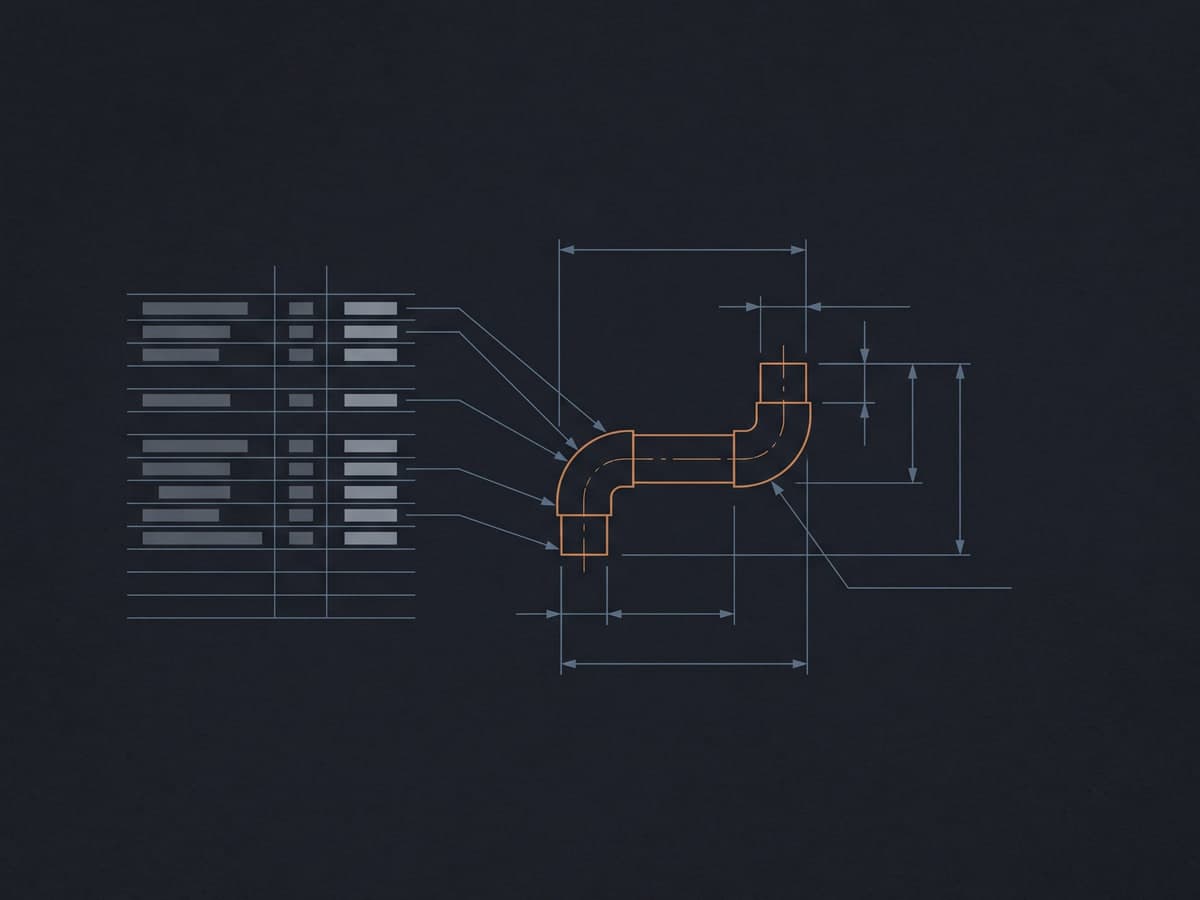
The three usual causes
1. The length was never published
Some exports carry geometry and very little else. A federation of plain meshes or dumb solids has nothing to read: no length, often no size or class either. No mapping will fix this, because there is no property to map. The only fix is upstream, in the authoring application.
2. The length is there, but under a name Quantification is not reading
This is the common one, and Plant 3D pipes are the textbook case. In an NWD built from Plant 3D, the piping properties sit under the AutoCAD category, not the Elementcategory you see on Revit-sourced objects. The pipe has a length; Quantification is simply not pointed at it, so the row reads zero until the property is mapped by hand. Autodesk’s Property Mapping exists for exactly this: when the automatic match does not land, you define the property per project yourself.
3. The mapping was built for a different model family
A mapping that works on Revit-sourced pipework will not find anything on a Plant 3D file, and the reverse is also true, because the categories differ. In a federation that mixes sources, one discipline’s pipes come through with metres and another’s read zero. Nothing looks wrong in the 3D view. This is why the setup has to be repeated whenever a new model family arrives.
How to check which one you have
Menu names move between Navisworks releases, so treat the steps below as a route rather than a script. It is the route we used when counting Plant 3D models independently in Navisworks Manage 2027.
- Inspect one pipe. Select a single pipe segment and look through its properties, category by category. If no category holds a length, you have cause 1. If one does — for Plant 3D, typically under AutoCAD — you have cause 2 or 3.
- Pull the properties for every pipe. In the Selection Inspector, open Quick Properties and Manage Sets, and add the properties you care about by name:
Class,Length,Line Number,Size,Long Description. - Select by property, not by eye. Use Find Items with the condition AutoCAD · Class · Defined, then Find All. The Selection Inspector can then export the selection to CSV.
- Compare the CSV with Quantification. If the CSV shows lengths and the take-off shows zero, the problem is the mapping. If the CSV is blank too, the problem is the export.
Two things that catch people out. The column set is kept between files, but the Find Items condition is not — rebuild it for each model. And the order of properties in the list changes from file to file, so always pick a property by its name, never by its position.
Fixing it inside Navisworks
If the length exists, map it. In Quantification’s Property Mapping, point the take-off length field at the property you found — the AutoCAD-category length for Plant 3D pipe — and refresh. Do it once per model family and keep it in your template, so the next Plant 3D job does not start from zero.
Then check it. Take an independent count of pipe objects and compare object counts as well as totals: if the counts match and the metres do not, a property is still wrong somewhere. Our Navisworks piping take-off guide covers that check in full. If the totals look high rather than low, the cause is more likely copies in the federation — see duplicate pipes in federated models.
Quantification also lets you measure manually what the catalogue misses. That is fine for a handful of objects. On a pipe system it means redrawing the model by hand, and the result is no longer traceable to anything the designer published.
What to ask the modeller to publish
If the length is not there, the request goes back upstream. Keep it short and specific — modellers respond better to a list than to “the model is broken”:
- A length on every pipe segment, written as a property by the authoring tool.
- A class or category on each component — Pipe, Elbow, Flange, Valve, Tee, Reducer.
- A size that resolves to a nominal bore, ideally an OD/DN pair. A bare “40” can be a schedule, a pressure class or a millimetre bore.
- A line number or system name, if you need quantities by line rather than one flat total.
- An export with object properties included, not plain meshes or solids.
A quick way to settle it: ask for a screenshot of one pipe’s property list in the authoring tool next to the same pipe in Navisworks. If the length is on the left and missing on the right, the export dropped it. If it is missing on both, it was never modelled as data. If your models arrive as NWD only, with no access to the source files, see Plant 3D MTO without the DWG.
When the length genuinely is not there
Be honest about it in the take-off. A pipe with no published length is not zero metres and it is not an estimate — it is unmeasured. List those objects separately with their IDs, send the list to the modeller, and price only what you can trace. This applies to every tool, including ours: Metriq MTO reads the properties the model publishes, and a federation of plain meshes produces no take-off rows. For a side-by-side view of the two approaches, see Navisworks Quantification compared.
Questions
Why does Navisworks show zero length for my pipes?
Quantification does not compute quantities from geometry. It reads values the authoring application wrote into the model. If the source application did not publish a length property, or the property is not mapped to the take-off field, the row reads zero. Plant 3D pipes are a common case: the length is often there, but under the AutoCAD category, and it has to be mapped by hand.
Can Navisworks calculate pipe length from the 3D geometry?
Not in Quantification. Autodesk describes ModelLength, ModelWidth and ModelVolume as properties that came into the model from the original design application. A pipe you can see but whose length was never published will not get a length from Navisworks.
Where do I find Plant 3D pipe properties in Navisworks?
In an NWD built from Plant 3D, the piping properties sit under the AutoCAD category, not the Element category you see on Revit-sourced objects. Look there for Class, Length, Line Number, Size and Long Description.
What if the model has no length property at all?
Then no take-off tool can count it, because there is nothing to read. Ask the modeller to re-export from the authoring application with object properties included. Until then, list those pipes as unmeasured rather than estimating them.
Metriq MTO turns a Navisworks NWD into a line-based piping MTO in your client’s own Excel schema. Every row traces back to the model object it came from, and anything the model cannot evidence is listed, never invented. A single model is £100 excluding VAT.