How to count pipe fittings and valves in a Navisworks model
Short answer: select by property, not by eye. Find the property that names each part’s type, build one Find Items search per type, save it as a search set, and read the count in the Selection Inspector or take the set off in Quantification. Then check the counts by line and size, because the tool that drew the model decides what one fitting is.
Why fitting counts drift between tools
A count is only as good as the definition of an object, and every authoring tool publishes its parts in its own way. In an NWD built from Plant 3D, each part carries a Class (Elbow, Tee, Reducer, Flange, Valve) under the AutoCAD category. On Revit-sourced objects the type sits in the Element category, with fittings usually under Pipe Fittings and valves under Pipe Accessories. A search built for one family finds nothing in the other.
Four things make two honest counts of the same model disagree:
- The level you count at. One fitting can appear in the selection tree as a parent with geometry under it. Count every node and one elbow becomes two or three. Search on a property that only the component node carries, such as the class, and check a few results in the tree.
- Parts inside other parts. In some Revit valve families the flanges are drawn as part of the valve, so there is no separate flange object to count. In other models every flange is its own part.
- Parts that were never modelled. Gaskets and bolt sets are often not objects you can select. Whether they exist depends on the tool and the piping spec.
- Copies in a federation. A source model appended twice doubles every count without anything looking wrong in the 3D view. See duplicate pipes in a federated model.
Counting in Navisworks, step by step
Menu names move between Navisworks releases, so treat this as a route rather than a script.
- Inspect one of each. Click an elbow, a tee, a reducer, a flange and a valve. For each, note the category and property that names the type, and where the size and the line number sit.
- Build one search per type. In Find Items, set a condition on that property, for example Class equals Valve on a Plant 3D model, then Find All.
- Save each search as a search set. A saved search runs again on the next revision, so the counts can be repeated rather than redone (see comparing piping quantities between model revisions).
- Read the count and the properties. With the set selected, the Selection Inspector lists the objects. Add size and line number to its columns and export to CSV, then pivot by line and size in Excel.
- Or take it off in Quantification. Drag the search set onto a catalogue item and every matching object is counted. Map the size and line properties first, or the rows will not split by them.
Checks before you price the counts
- Reducing items carry two sizes. A reducer or reducing tee with only one size cannot be ordered. Check every reducing row for both.
- Flanges usually come in pairs. A line with an odd flange count deserves a second look. The answer may be a nozzle, a blind flange or a missing object.
- Valves against the valve list. If you have the P&ID or a valve list, compare by line. A valve in the list but not in the model is a pricing risk; a valve in the model but not in the list is a question for the designer.
- Totals per source model. If one discipline’s counts are double what you expect, look for a model appended twice before anything else.
- The leftovers. Select the piping objects that none of your sets matched. They are either a type you have not searched for or an object with no usable properties, and both belong on the take-off as a list.
What the estimator should receive
| Item | Unit | Broken down by |
|---|---|---|
| Elbows, tees, reducers, caps | each | Line, type and size; two sizes on reducing items |
| Flanges | each | Line, size and type (weld neck, slip-on, blind) |
| Valves | each | Line, size and type where the model publishes it |
| Gaskets and bolt sets | each | Size, only where the model or the spec gives them |
| Not resolved | listed | The object and why it could not be counted |
Pipe sits alongside in metres. For a UK bill of quantities, NRM2 work section 38 says when these fittings are measured separately from the pipework. If any term here is unfamiliar, the piping take-off glossary defines it in a line or two.
What Metriq MTO gives back
Metriq MTO returns these counts from the NWD as a line-based Excel workbook, with fittings, flanges and valves in each and pipe in metres or feet, plus a PDF report you can send with the bid. The model objects behind a row open in the 3D view, and anything the model cannot evidence is listed rather than counted.
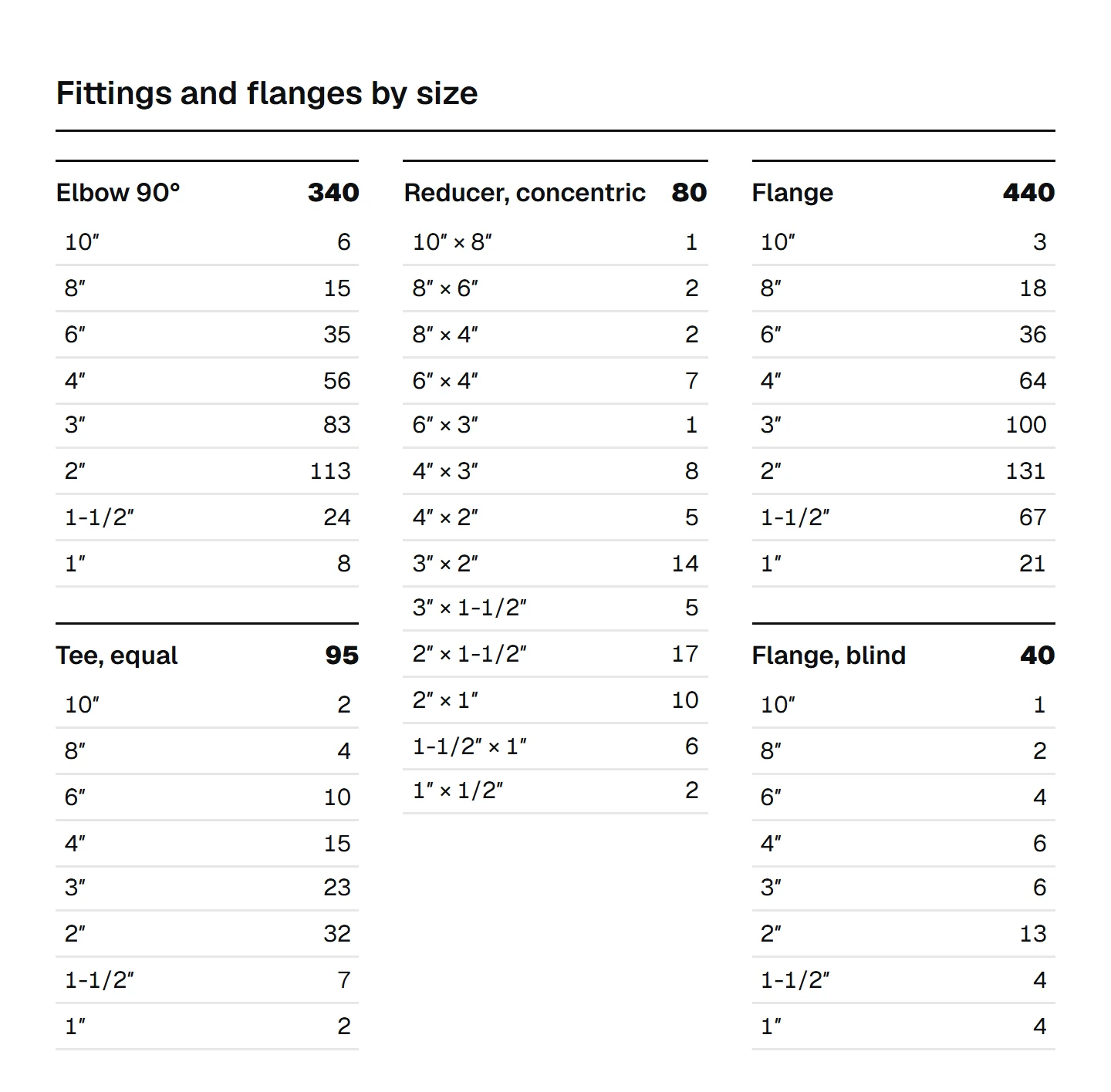
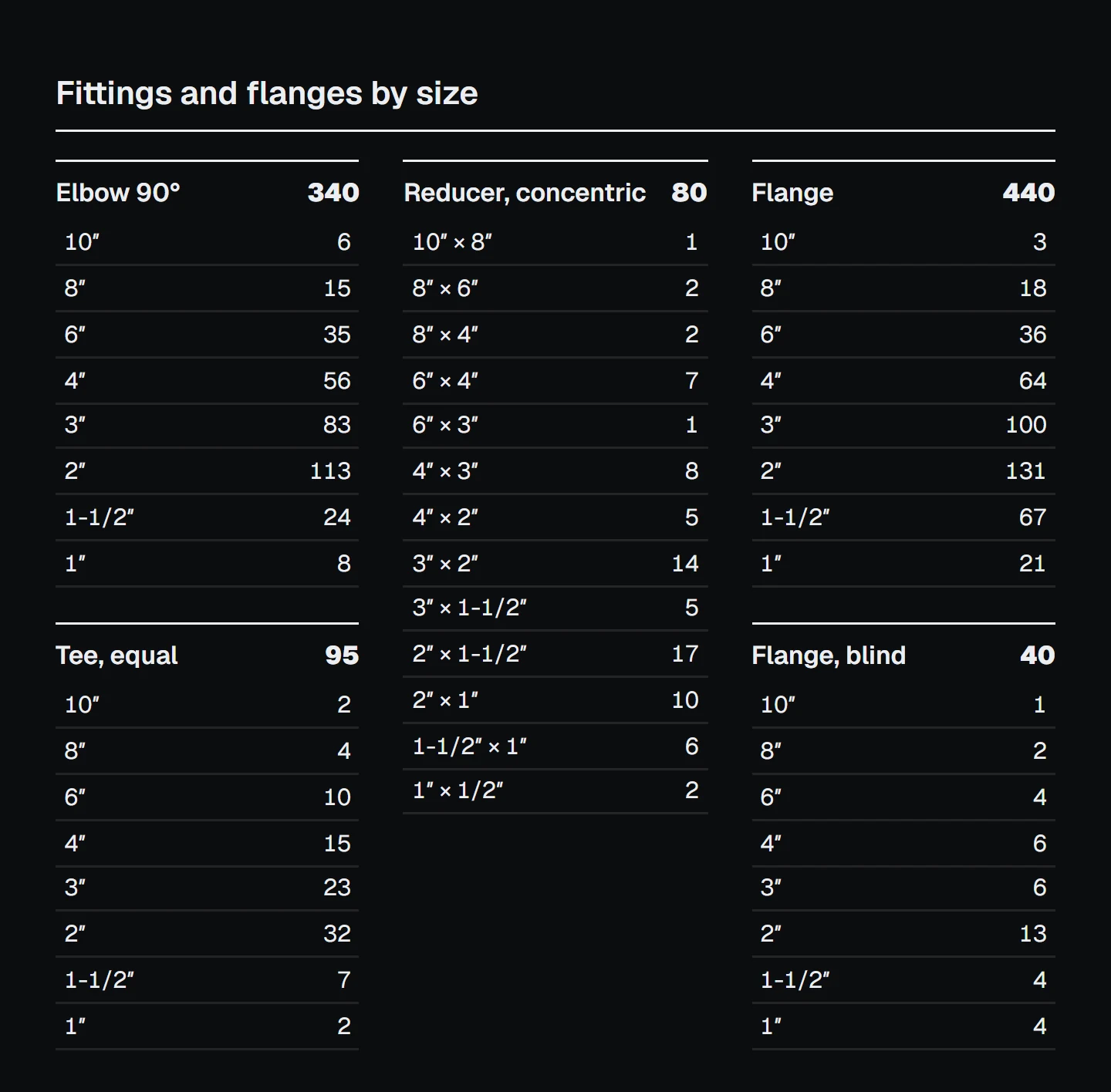
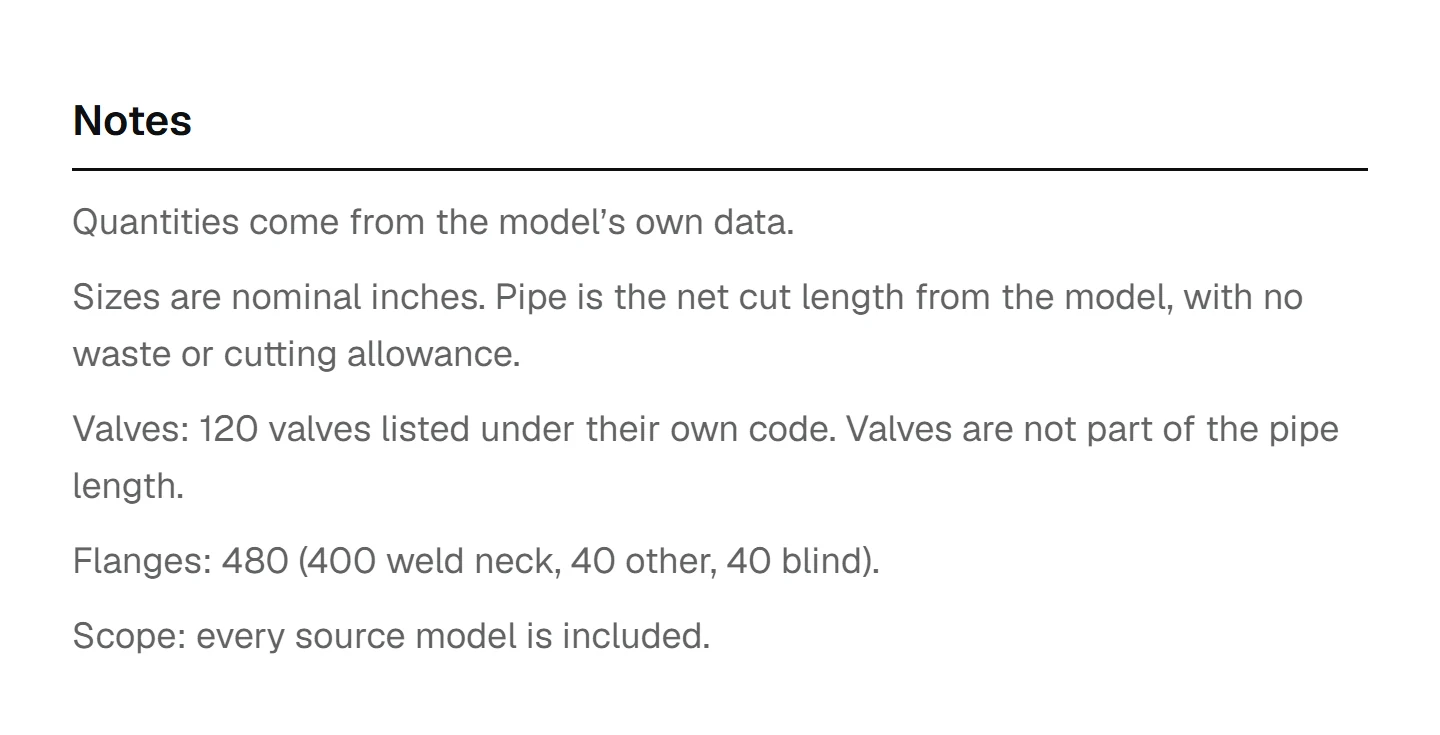
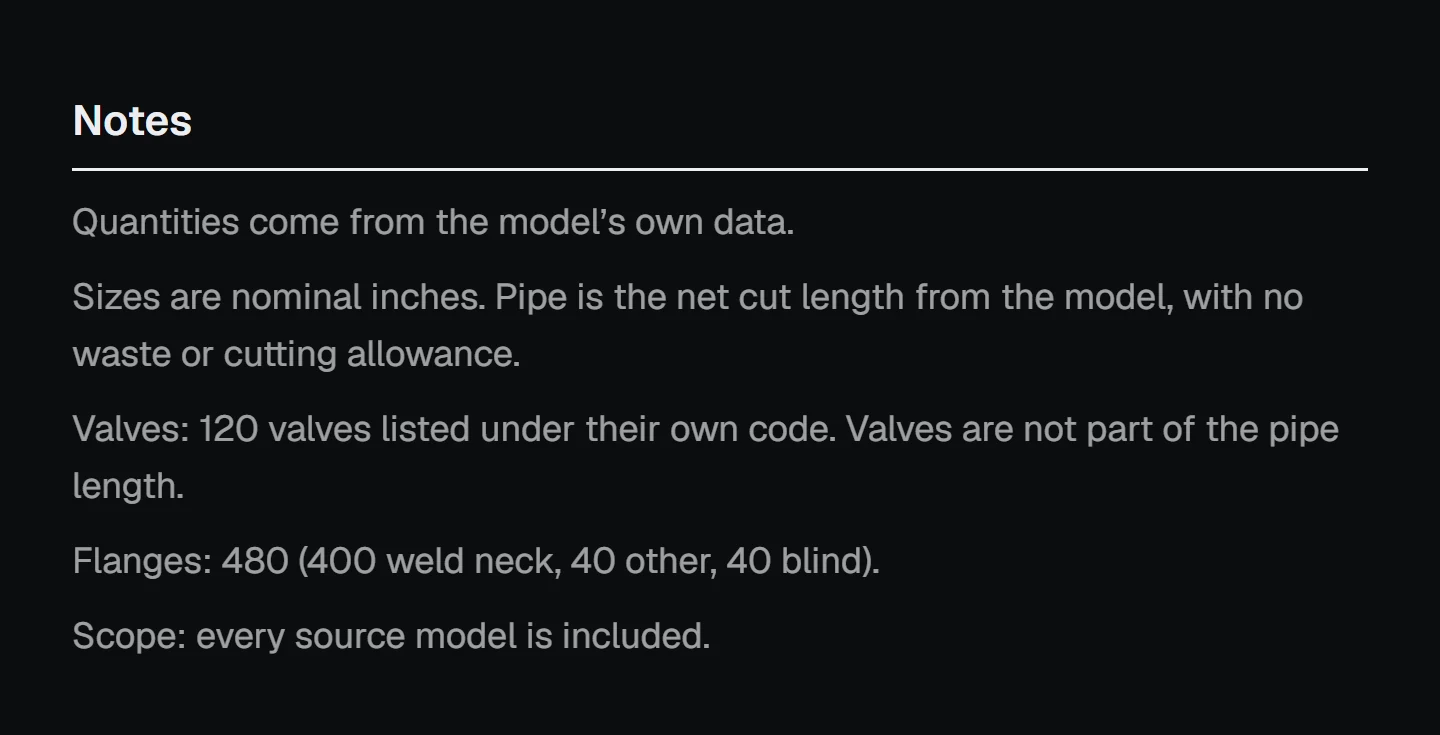
Download the full workbook and report from the sample take-off, or start with the wider guide to a piping MTO from Navisworks.
Questions estimators ask
How do I count valves in a Navisworks model?
Click one valve and find the property that names its type: on Plant 3D objects that is usually the Class under the AutoCAD category, on Revit objects the Element category, where valves usually sit under Pipe Accessories. Use Find Items with that condition, save it as a search set, and read the count in the Selection Inspector or take the set off in Quantification.
Why does my fitting count differ from the isometric bill of materials?
Because each tool decides what one fitting is. A valve family can carry its flanges inside it, gaskets and bolt sets are often not modelled as objects, a federation can hold two copies of the same run, and a count taken at the wrong level of the selection tree counts parts of one object. Compare by line and size, not by grand total, to find which one it is.
Can Navisworks Quantification count fittings automatically?
Yes, once it is set up. A search set dragged onto a catalogue item takes off every matching object, and each one is counted. The work is in the set-up: one search per fitting type, the size and line properties mapped, and the same again for each new model family.
Are gaskets and bolt sets in the model?
Often not as objects you can select. Whether they appear depends on the authoring tool and the piping spec. Check one flanged joint before you rely on a count; if they are not there, check the piping spec before you price them.
Sources
- Quantification workflow (Autodesk Navisworks help)
- About takeoff property mapping (Autodesk Navisworks help)
- Automation of quantity takeoff by search sets (Autodesk Community, Navisworks forum)
- How to find duplicate items in Navisworks Simulate (Autodesk Community, Navisworks forum)
Links checked in October 2026. Menu names and pages can move between releases.
A line-based piping MTO in Excel, with exact copies counted once and anything the model cannot evidence listed.