Comparing piping quantities between model revisions
Short answer: do not redo the take-off and compare grand totals. Compare the two take-offs row by row, keyed on line, item and size, and price the difference: rows added, rows removed and quantities that moved. A matching grand total can hide a run that moved from one line to another.
Why a full re-take-off wastes the tender window
Revisions rarely arrive at a convenient moment. A new NWD lands a few days before the bid is due, and the obvious response is to measure it again from the start. That repeats every check you already made on the parts that did not change, and it still does not answer the question the client will ask: what changed, and what does it cost?
The answer to that question is a list of differences. Most of a revised model is the same as the last one, so most of your price should stand. What needs your time is the handful of lines that moved.
Comparing two take-offs in Excel
- Give both the same key. Line, item code, size 1, size 2, and material where the model publishes it. If the two take-offs were made with different column names or units, fix that first: pipe in metres, everything else in each.
- Stack them in one table with a revision column, then pivot the quantity by key and revision.
- Add a difference column and filter out the zeros. What is left is the change to price.
- Keep the rows that exist in only one revision. A lookup that starts from the new revision never sees the rows that were removed. Starting from the combined list catches both.
- Compare exact quantities, not rounded ones. Two lengths that round to the same figure can still differ, and two that round differently may not.
Comparing the models in Navisworks
Navisworks has its own Compare tool. Append the second file, select both files in the Selection Tree and run Compare from the Home tab. It colours the matches and the differences in the 3D view, and it can save each difference as a selection set with a comment describing it.
That is useful for seeing where the model moved. It does not turn the change into metres and counts by line and size, so you still need the take-off comparison above to price it. The two work well together: Compare tells you where to look, the take-off tells you how much.
Traps that fake a change
- Renumbered lines. A line renamed between revisions shows up as removed in full under the old name and added in full under the new one. Pair them up before you price anything.
- A sub-model swapped or appended twice. If one discipline’s totals jump, check the source models before the lines. Autodesk documents that appended NWCs can multiply in an NWF on open or refresh. See duplicate pipes in a federated model.
- Hidden objects. If one file was saved with objects hidden and the other was not, a take-off that skips hidden objects shows a change that is not in the design. Unhide everything in scope in both files before you measure.
- Sizes published differently. A size written as DN 50 in one revision and 2″ in the other splits one row into a removed row and an added row. Resolve both to the same nominal size first.
- Lengths that read zero in one revision. A re-export that dropped the length property makes pipe look removed. See why Navisworks shows zero-length pipes.
What to ask for when a revision lands
Whoever produces the take-off, in-house or outside, hold the revision to this output:
- Rows added, removed and changed, each with line, item and size, the quantity before and after, and the difference.
- Totals per line, so you can see which lines moved at a glance.
- A note of what could not be compared, such as renamed lines or objects with no usable properties.
- The unchanged rest, confirmed as unchanged rather than re-measured, so the rest of your price stands.
What Metriq MTO shows
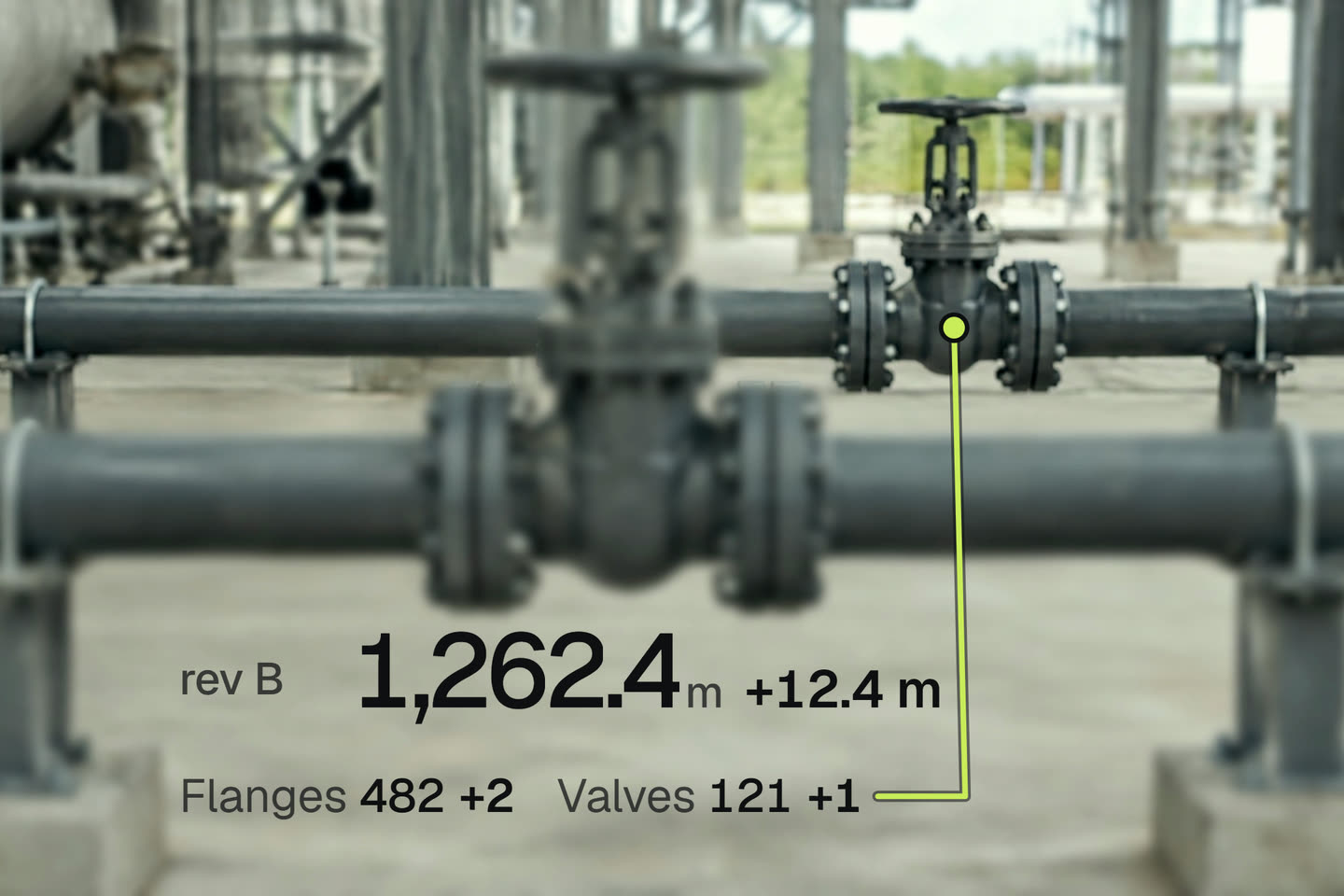
When the next revision lands, Metriq MTO shows what changed, so you price the difference instead of starting over. On the demonstration plant in the film on the Metriq MTO home page, Rev B adds 12.4 m of pipe, two flanges and one valve, and the rest of the price stands.
Each revision is one model: one of the 15 a month on the monthly plan, or a new purchase on a single model. To see what a full workbook and report look like, download the sample take-off (a separate synthetic plant, so its totals differ from the film’s). For the columns a comparison needs, the piping MTO Excel template has them ready.
Questions estimators ask
How do I compare two revisions of a piping MTO in Excel?
Give both take-offs the same key (line, item, size 1, size 2 and material where it is published), stack them in one table with a revision column, and pivot quantity by key and revision. Add a difference column and filter out the zeros. Start from the combined list, not from the new revision alone, or the rows that were removed disappear from the comparison.
Can Navisworks compare two model revisions?
Yes. Append the second file, select both in the Selection Tree and run Compare from the Home tab. Navisworks colours the matches and the differences and can save each difference as a selection set. It shows what changed in 3D; it does not turn the change into quantities by line and size.
Why does a renamed line show as removed and added?
Because the line number is part of the key. If the designer renumbers a line between revisions, every row on it looks removed under the old name and added under the new one. Look for pairs of removed and added rows with the same items and sizes before you price them as a change.
Does a new revision count as a new model in Metriq MTO?
Yes. Every upload is one model, so a new revision uses one of the 15 models a month on the monthly plan, or is a new purchase on a single model.
Sources
- To compare two versions of the model (Autodesk Navisworks help)
- Appended NWC in NWF model get duplicated while opening or refreshing (Autodesk support)
- Quantification workflow (Autodesk Navisworks help)
Links checked in October 2026. Menu names and pages can move between releases.
A line-based piping MTO in Excel, with exact copies counted once and anything the model cannot evidence listed.