How to export Navisworks properties to Excel
Short answer: two routes ship with Navisworks. For raw properties, select the objects, add the properties you need to the Selection Inspector and export it to CSV, which opens in Excel. For quantities, the Quantification workbook in Manage and Simulate exports its take-off to an Excel file. Save each selection as a search set so the export repeats on the next revision. Either way you get the model’s properties as published, which is not yet a take-off you can price.
Which route fits
| Route | What the file holds | Set-up before the first export |
|---|---|---|
| Selection Inspector to CSV | One row per selected object, one column per property you added | A property set and a Find Items search per object type |
| Quantification to Excel | The take-off: catalogue items and the quantities measured for them | An Item Catalogue, property mapping and a WBS |
Use the first when you want to see what the model carries, or need a handful of properties in a sheet. Use the second when the firm already has a Quantification template for the kind of model you received. Menu names move between Navisworks releases, so treat the steps below as a route rather than a script.
Route 1: the Selection Inspector to CSV
Autodesk describes the Selection Inspector as a dockable window that lists the selected objects and the Quick Properties associated with them. Every object visible in it can be exported to a CSV file, and an object you want left out has to be deselected first. The columns are the properties you add, so the work is in choosing them.
- Inspect one object of each type. Note the category and the name of each property you need. On a Plant 3D model the piping properties sit under the AutoCAD category; on Revit-sourced objects, under Element.
- Add those properties as columns. In Navisworks Manage 2027 this sits in the Selection Inspector itself, under Quick Properties and Manage Sets. Autodesk’s 2026 help describes the same thing as a property set made from Home › Display › Property Sets, while the 2025 help still sends you to Quick Properties definitions in the Options Editor. Pick each property by its name, not by its position in the list.
- Select by property, not by eye. Build the selection with Find Items and Find All, rather than by clicking nodes at the top of the Selection Tree, so every row is one part.
- Export. The Selection Inspector’s export button writes the selection to a CSV file. Open it in Excel and keep that sheet untouched; do the sorting and totals on a copy.
The exact steps, with the two things that catch people out, are in how to check a pipe’s length properties. For one search per fitting type, see counting fittings and valves step by step.
Route 2: the Quantification workbook to Excel
Autodesk documents Quantification for Navisworks Manage and Simulate users. Its own workflow runs to eleven steps, and the last is to output the take-off data to Excel XLSX format. In the 2026 help the export itself is short: in the Quantification Workbook, click the button for importing and exporting catalogues and quantities, choose Export Quantities to Excel from its list, and save the file.
What arrives is the take-off you built, not every property of the model. Quantification maps each item type to a default property and measures that: a linear item reads Length unless you map it to something else. So the file holds the catalogue items you created and the quantities measured for them. A pipe whose length was published under a name the mapping does not read comes out as zero; the zero-length guide walks through the fix. The catalogue, the mapping and the WBS are the set-up that takes the days, and the piping take-off guide sets out where that time goes.
Make the export repeat on the next revision
A selection set keeps the same objects. A search set keeps the search criteria instead, so Autodesk notes it can be run again as the model changes, and search sets can be exported and shared with other users. That makes the search set, not the spreadsheet, the thing to keep. The Selection Inspector can show a search set directly, so the export is a matter of choosing the set and pressing export again.
- One search set per object type: pipe, elbows, tees, reducers, flanges, valves.
- The same property set on every export, so the columns line up between revisions.
- A fresh export for each revision, next to the last one, never over it. Check that the saved search sets still find the same items in the new file, and rebuild them if they do not.
With two exports side by side, compare them by line and size rather than by grand total: comparing quantities between model revisions covers the traps that fake a change.
What a raw property export lacks for pricing
A property export is the model’s data as the authoring tool wrote it. Before an estimator can price from it, these gaps have to be closed:
- Rows are objects, not lines. Autodesk’s reference for the Selection Inspector lists composite objects: one CAD object shown as a group of geometry items. Select at the wrong level and one part becomes several rows. A take-off needs one row per line, item and size, so the CSV has to be pivoted by line number, which only works if the model publishes one.
- Sizes arrive as the model wrote them. A bare “40” can be a bore, a schedule or a pressure class, and a reducer with one size cannot be ordered. See nominal size in the glossary.
- Units need checking. Confirm the unit of every length column before you total it; a sheet that mixes millimetres and metres totals without an error.
- Zero and blank lengths. A pipe with no published length is unmeasured, not zero metres. List it separately; the zero-length guide explains what to ask the modeller for.
- Copies. A source model appended twice to the federation exports twice, and nothing in the sheet says so. See how to find duplicates by hand.
- Leftovers. Objects that none of your searches matched are missing from the file without a trace. Select the piping that no set picked up and list it.
The finished sheet should look like a line-based MTO: pipe in metres, everything else counted, two sizes on reducing items. The piping MTO Excel template shows those columns, and the output contract explains why each unit is what it is.
When a take-off tool fits better
If you need a few properties from one model, export them. If every bid brings a new model family and what you need at the end is a priced piping take-off, the property sets, searches, pivots and checks above are repeated on every job. That is the case Metriq MTO is built for. It takes the NWD as it is and returns a line-based piping MTO in Excel, with pipe in metres or feet and fittings and valves in each, plus a PDF report you can send with the bid. Exact copies of the same object are counted once, and items the model cannot evidence are listed rather than invented. It does not export arbitrary properties: for anything other than a piping MTO, the two routes above are the ones to use.
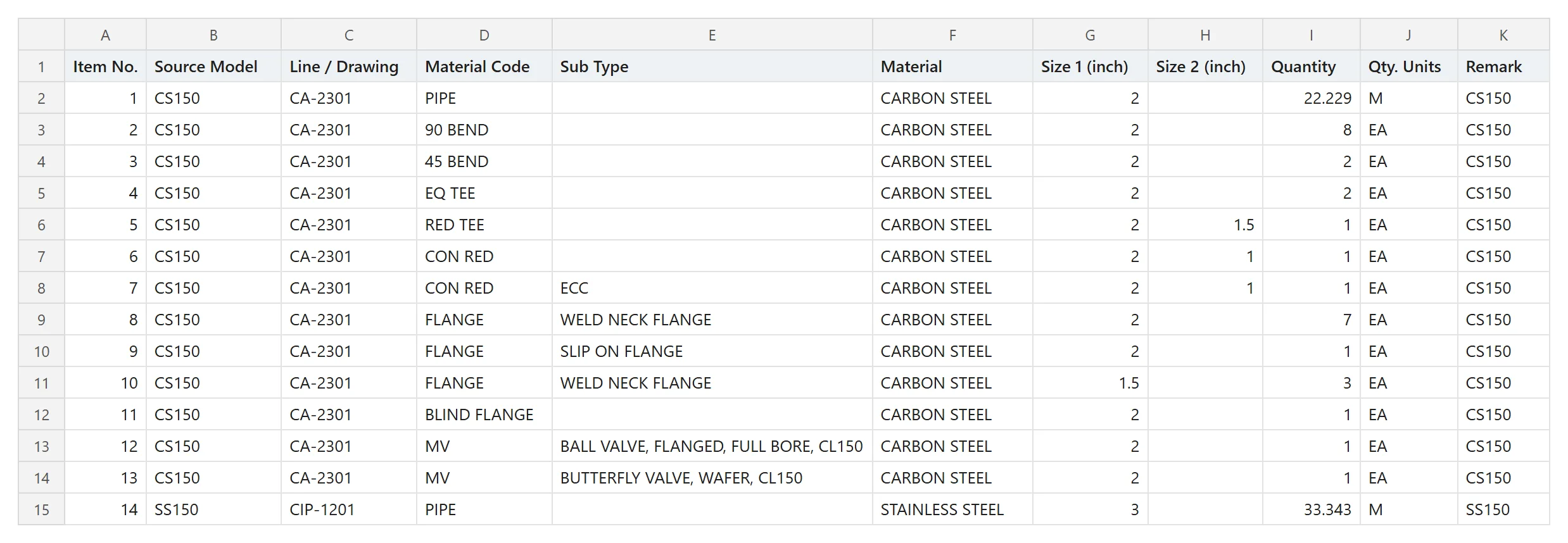
Download the full workbook and report from the sample take-off, read what goes in and what comes out on the piping MTO software page, or see Navisworks Quantification compared with Metriq MTO.
Questions estimators ask
Can I export every property of every object at once?
Not with the two routes that ship with Navisworks. The Selection Inspector exports the properties you add to it as columns, and Quantification exports the take-off you have set up. Add the properties you need by name. If you look at an add-in for a bulk export instead, we have not tested any, so check that it supports your Navisworks release before relying on it.
Can Navisworks Freedom export to Excel?
Not through Quantification: Autodesk names Navisworks Manage and Simulate users for Quantification, and Freedom is not among them. We have not tested the Selection Inspector export in Freedom, so check it in your own copy before you plan around it.
Why does my CSV have more rows than there are objects in the model?
Usually because the selection was made at a level where one object appears as a parent with geometry under it, so one fitting becomes two or three rows. A source model appended twice to the federation does the same to every row. Select with Find Items on a property only the component carries, such as the class, and check the totals per source model.
Why are some lengths zero or blank in the export?
Because Navisworks exports the length property the authoring tool published, not a length measured from the solid. A blank in the CSV means that object carries no value under the property you added: check the other categories in the Properties window before concluding the model never published it; a value in the CSV but zero in Quantification means the property is not mapped to the take-off.
Does the Excel file update when the model changes?
No. Each export is a snapshot. What repeats is the selection: save each search as a search set, re-run it on the next revision and export again, then compare the two files line by line.
Sources
- Selection Inspector window (Autodesk Navisworks help)
- Reference for the Selection Inspector window (Autodesk Navisworks help)
- Work with Quick Properties (Autodesk Navisworks help)
- Work with Quick Properties (2025 release) (Autodesk Navisworks help)
- Create and use sets of objects (Autodesk Navisworks help)
- Navisworks Quantification user guide (Autodesk Navisworks help)
- Quantification workflow (Autodesk Navisworks help)
- Export data (Quantification) (Autodesk Navisworks help)
- Quantification workbook (Autodesk Navisworks help)
- About takeoff property mapping (Autodesk Navisworks help)
Links checked in October 2026. Menu names and pages can move between releases.
A line-based piping MTO in Excel, with exact copies counted once and anything the model cannot evidence listed.